Wrangling Windows Event Logs with Hayabusa & SOF-ELK (Part 2)

In part 1, we used Hayabusa to reduce/refine Windows Event Logs from a single endpoint. Then we ingested that output into SOF-ELK for further analysis. But what if we need to wrangle Windows Event Logs for more than one system? In part 2, we’ll wrangle EVTX logs at scale by incorporating Hayabusa and SOF-ELK into my rapid endpoint investigation workflow (“REIW”)!
You can read Part 1 of “Wrangling Windows Event Logs with Hayabusa & SOF-ELK” HERE.
Patterson’s Rapid Endpoint Investigations:
Did you know that a Suzuki GSX1300R can go from 0 to 60 in less than 3 seconds and has a top speed of over 300 km/h?!? In technical terms, that’s freaking fast, thus the Hayabusa namesake! What does that have to do with wrangling EVTX logs? Mostly, it just makes me happy to talk about it…but also speed, when combined with thoroughness and accuracy, is a critical component of our security-investigation success! I am constantly looking for ways to collect, parse, reduce/refine (perform “CPR”) as quickly as possible, to expedite triage, derive actionable intelligence, and rule the DFIR day: REIW, Hayabusa, and SOF-ELK for the “wrangling EVTX” win!
Part of my rapid-endpoint-investigations workflow (“REIW”) has always been collection of EVTX files and parsing/refining via Hayabusa. As is, REIW incorporates Hayabusa output into the consolidated triage Excel workbook for each endpoint. This works pretty well when reviewing a small number of endpoints, but what about 25 or 50 or 100 endpoints? Fortunately, we can easily concatenate the Hayabusa output we’ve already generated via REIW and drop it into SOF-ELK to allow us to search, sort, and filter at scale, greatly increasing our wrangling speed!
If you are not familiar with how to collect, parse, reduce/refine at scale via REIW, you can check out the details here: GITHUB; WEBCAST
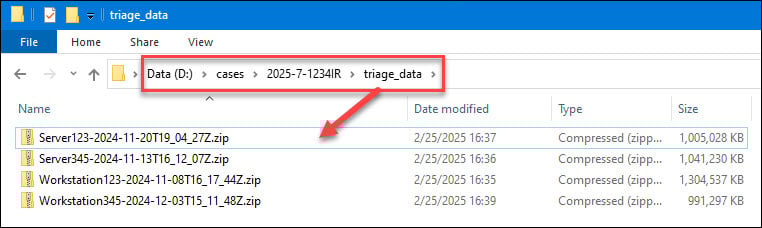
A critical component of REIW is staging your data consistently and uniformly. You don’t have to do it the way I do it, but you do need to have “a way” and make sure your file paths match your scripts. I typically use a dedicated operating system volume (OS Volume = C:) and a separate data volume (Data = D:). I stage my tools and scripts on the OS volume, which is largely static, then stage case data on the Data volume, which only lives as long as a case. On the Data volume, I’ll create a top-level “cases” folder, a case-# subfolder, and a “triage_data” folder within the case-# folder. Then I’ll save my REIW “triage data” zip files in the “triage_data” folder:
You can use the REIW “expand archive” script to decompress the zip files, then parse/process/stage them using the “KAPE Rapid Triage Excel” output script found here: https://github.com/secure-cake/rapid-endpoint-investigations/tree/main
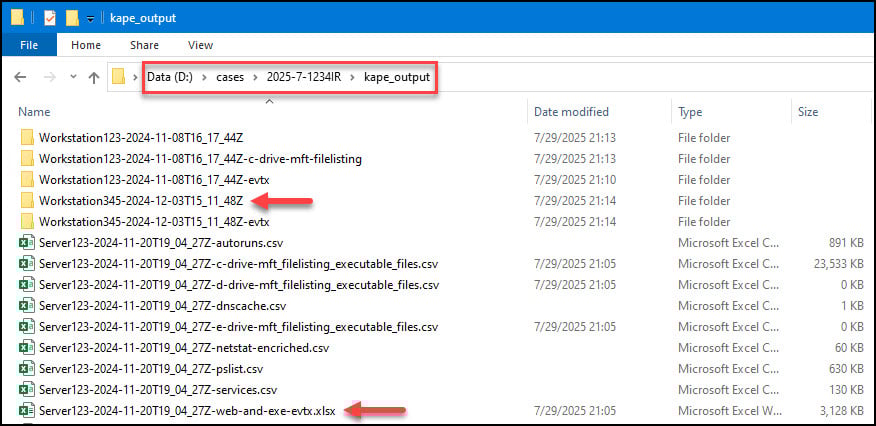
Upon completion, you should have a “kape_output” subdirectory beneath your case-# folder. For each endpoint, you’ll see a series of named folders and CSV/XLSX files. Typically, with REIW you’d review the consolidated output in the “Hostname-Date-Timestamp-web-and-exe-evtx.xlsx” workbooks, which includes a Hayabusa output worksheet. However, the raw Hayabusa output can also be found within the “Hostname-Date-Timestamp” folder, in the “EventLogs” subfolder:
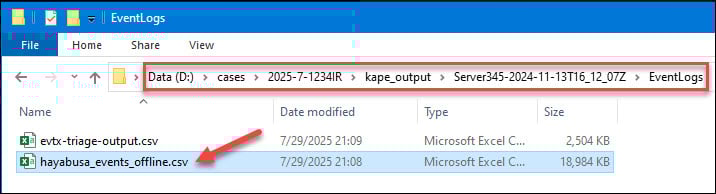
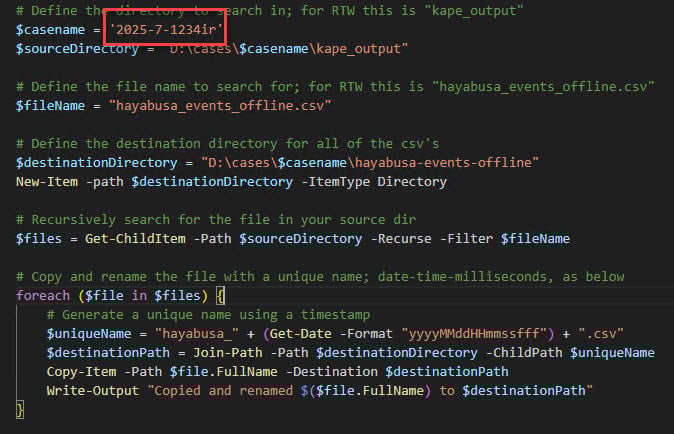
To proceed with wrangling our Hayabusa output files at scale, we need to rename and copy all of the output files to single directory using the REIW “hayabusa-copy-files-rename” script found here: https://github.com/secure-cake/rapid-endpoint-investigations/tree/main
Adjust the “casename” variable and make sure the paths match your configuration, then run the script:
You should now have a “hayabusa-events-offline” folder, with uniquely named Hayabusa output CSV files:
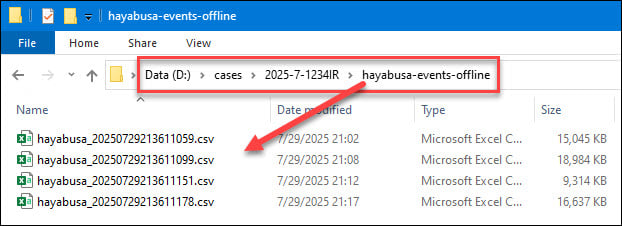
Since the individual records contain a “hostname” attribute, I don’t really care what the Hayabusa files are named. They just need to be unique so we can store them in a single directory, which will make it easier to copy them into SOF-ELK.
If you don’t have SOF-ELK up and running, you can revisit PART 1 to download a prepackaged VM!
Once SOF-ELK is ready, we can copy our Hayabusa output into the proper “logstash” folder, exercise a bit of patience while the SOF-ELK magic occurs, and then begin to analyze our data via the web UI, just like in Part 1.
We’ll use “scp” (secure copy) to copy all our CSV Hayabusa output files from the “hayabusa-events-offline” folder we created in the last steps to SOF-ELK. First, let’s check the IP address of our SOF-ELK VM:
$ip -br a 
NOTE: Your IP address will be slightly different than mine!
Now open a Windows PowerShell prompt on your Host system and enter the following command, changing the IP address to match the IP on your SOF-ELK VM:
scp d:\cases\2025-7-1234ir\hayabusa-events-offline\*.csv [email protected]:/logstash/hayabusa/ When you first authenticate via scp to your SOF-ELK VM, you’ll be prompted to accept the cert fingerprint. Type “yes” and hit enter to continue, then enter the “elk_user” password: forensics. You should then see the file transfer complete at 100% for each CSV file.
NOTE: In part 1, we used Hayabusa to create JSONL output files. We are using CSV this time because of the integration with REIW.
On your SOF-ELK VM, you can check the progress of ingestion and population of Elasticsearch indices by running the following command:
sof-elk_clear.py -i list Again, with a little patience, you should see something like the screenshot below indicating that the “evtxlogs” index is being populated:

NOTE: Your “documents” quantity will be different!
If you’re familiar with SOF-ELK, away you go! Truthfully, if you’re familiar with SOF-ELK you know that you need to be a bit patient, directly proportionate to the number of EVTX logs you just asked it to ingest! If you’re not familiar with SOF-ELK, go back to PART 1 to step through data views and query syntax.
This is just one potential way to wrangle Windows Event Logs with Hayabusa and SOF-ELK at scale, in combination with my rapid-endpoint-investigations workflow! Take it, tweak it, tune it, make it your own, and let me know how it goes!
Ready to learn more?
Level up your skills with affordable classes from Antisyphon!
Available live/virtual and on-demand